Best way to watch on your phone
Add it to your Home Screen and get new-video notifications (iPhone and Android)
iPhone の方: ホーム画面に追加すると、いちばん見やすくなります
iPhone の方は、Kenta Iwamoto Online を「ホーム画面に追加」して使うのがおすすめです。アプリのように、ブラウザのバーがない画面で開きます。全画面にしても、ミラー・A-B リピート・10 秒スキップなど、全部のボタンがそのまま使えます。
なぜホーム画面に追加するのか
iPhone のブラウザは、サイトに本当の全画面を許していません。そのため Safari などのブラウザで見ていると、全画面にしたときに次のようになります。
- ミラーがオフのとき — iPhone 標準の動画プレイヤーで画面いっぱいに表示します。ただしこの間は、ミラー・A-B リピート・10 秒スキップなどのボタンは使えません(標準の 15 秒スキップは使えます)。
- ミラーがオンのとき — 左右反転を保つため、ページの中で大きく表示します。画面の上下にブラウザのバーが残ります。
ホーム画面に追加して開けば、この制限はなくなります。パソコンは、ブラウザのままで全部使えます。Android の方は下の Android の手順を見てください。
手順(1 分で終わります)
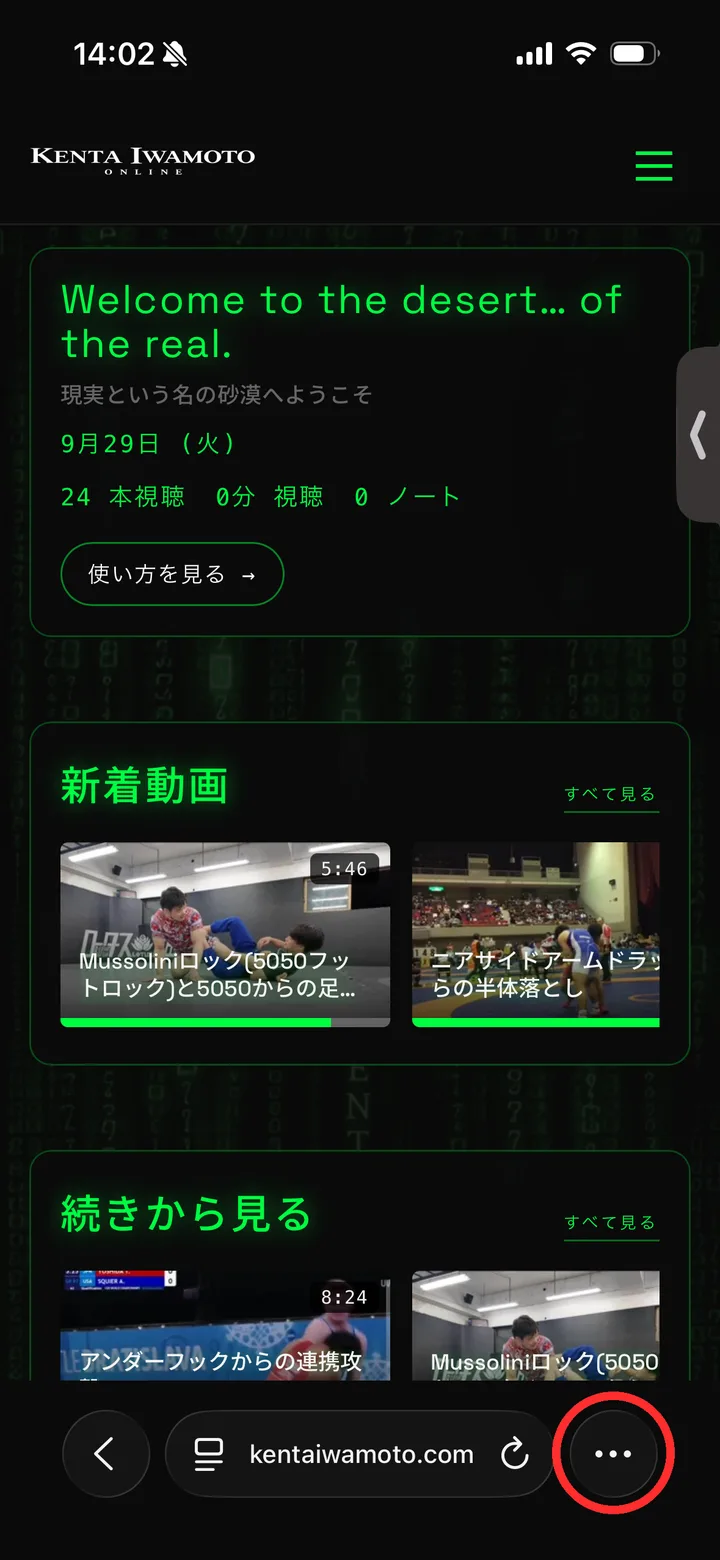
Safari で kentaiwamoto.com を開き、右下の「…」を押します。
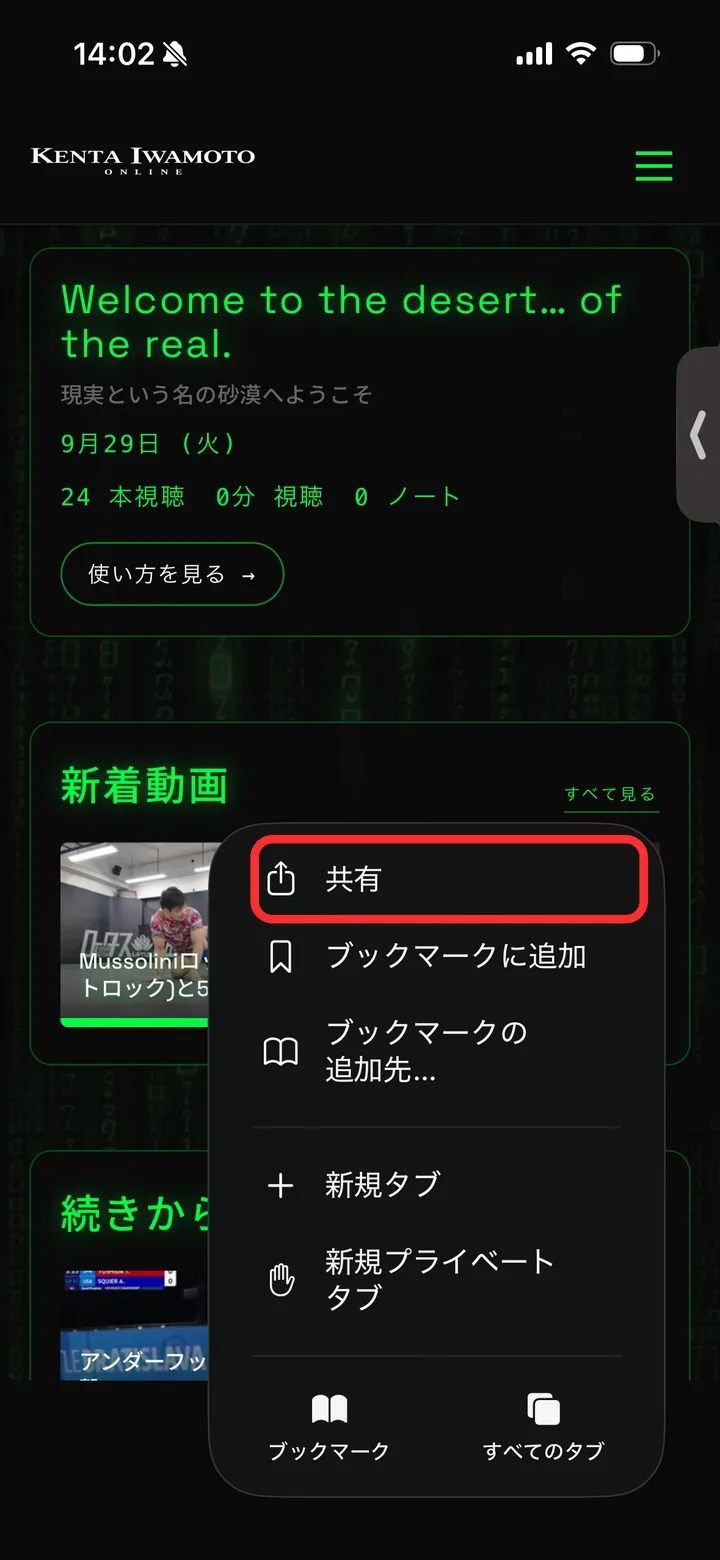
「共有」を押します。
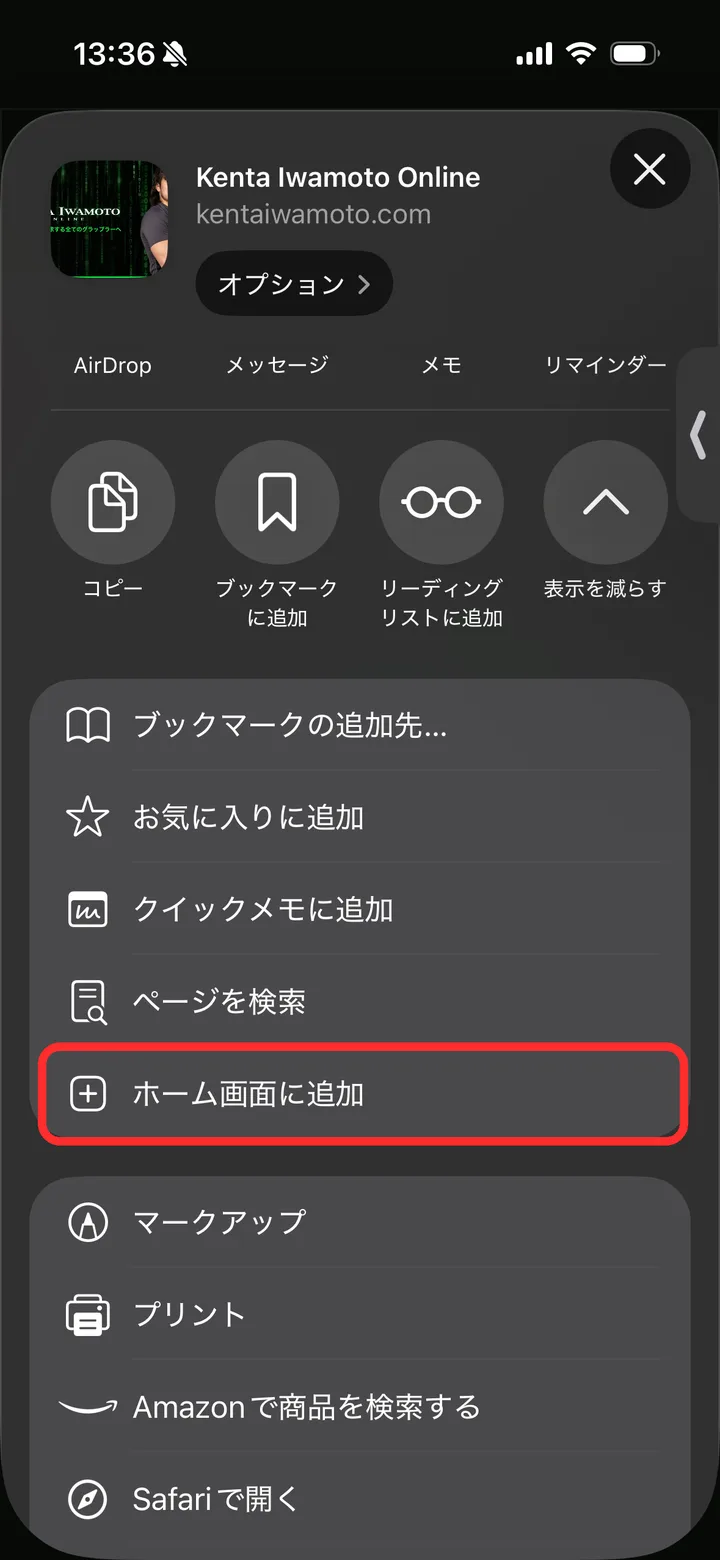
「ホーム画面に追加」を押します。見つからないときは、下にスクロールすると出てきます。
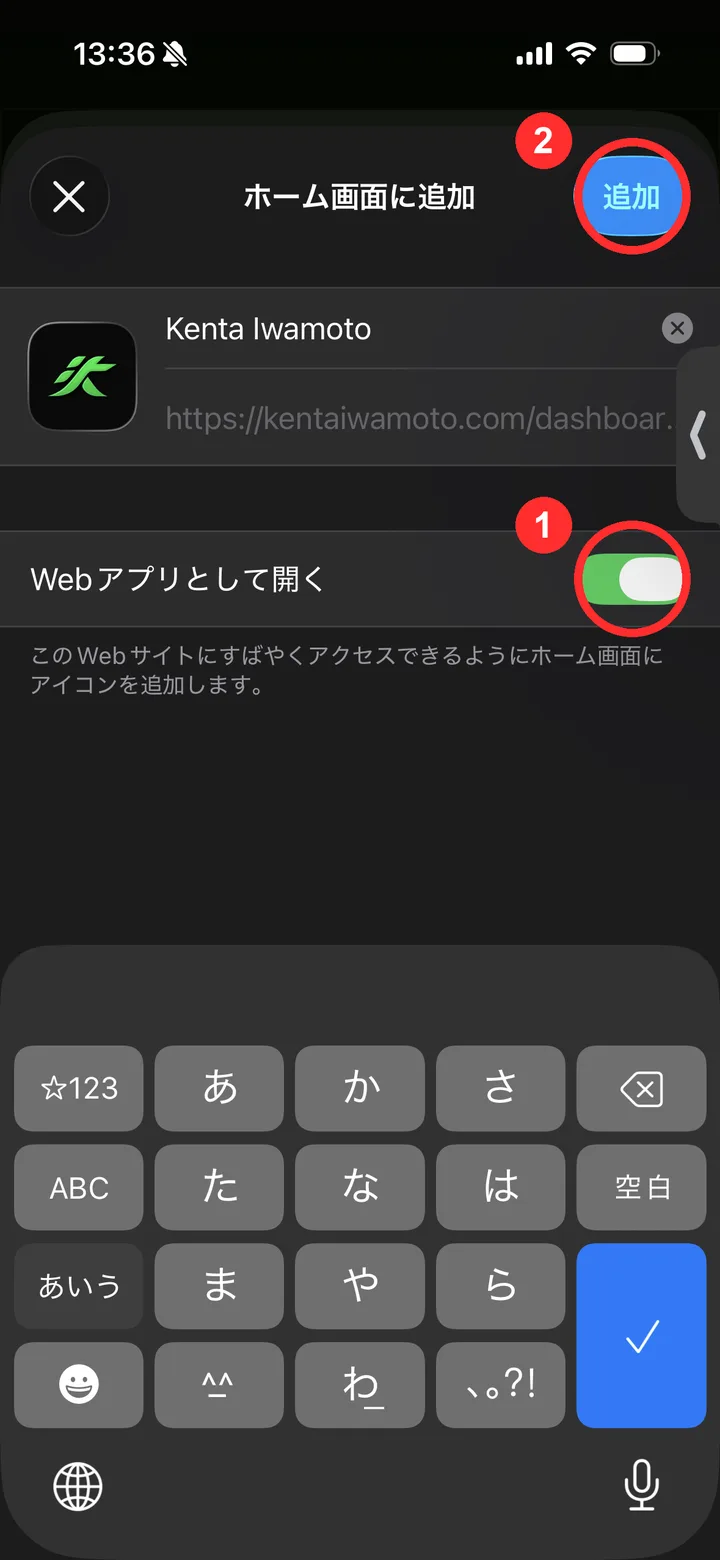
①「Web アプリとして開く」がオンになっているのを確かめて、②「追加」を押します。
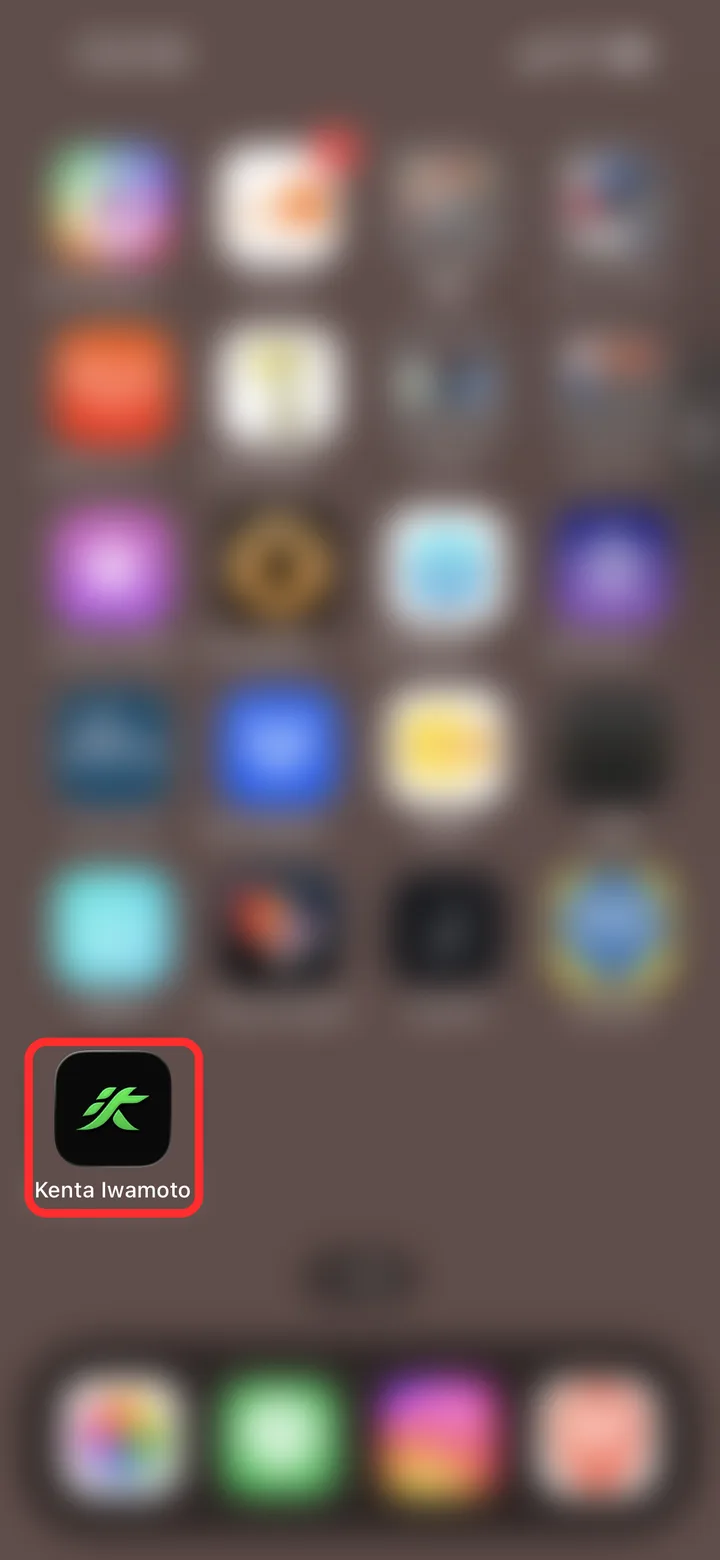
ホーム画面に緑の「汰」のアイコンができます。次からは、ここから開いてください。ホーム画面から初めて開いたときだけ、もう一度ログインしてください。
iPhone で新作動画の通知を受け取るには
ホーム画面から開いていると、新しい動画が公開されたときに通知でお知らせできます。
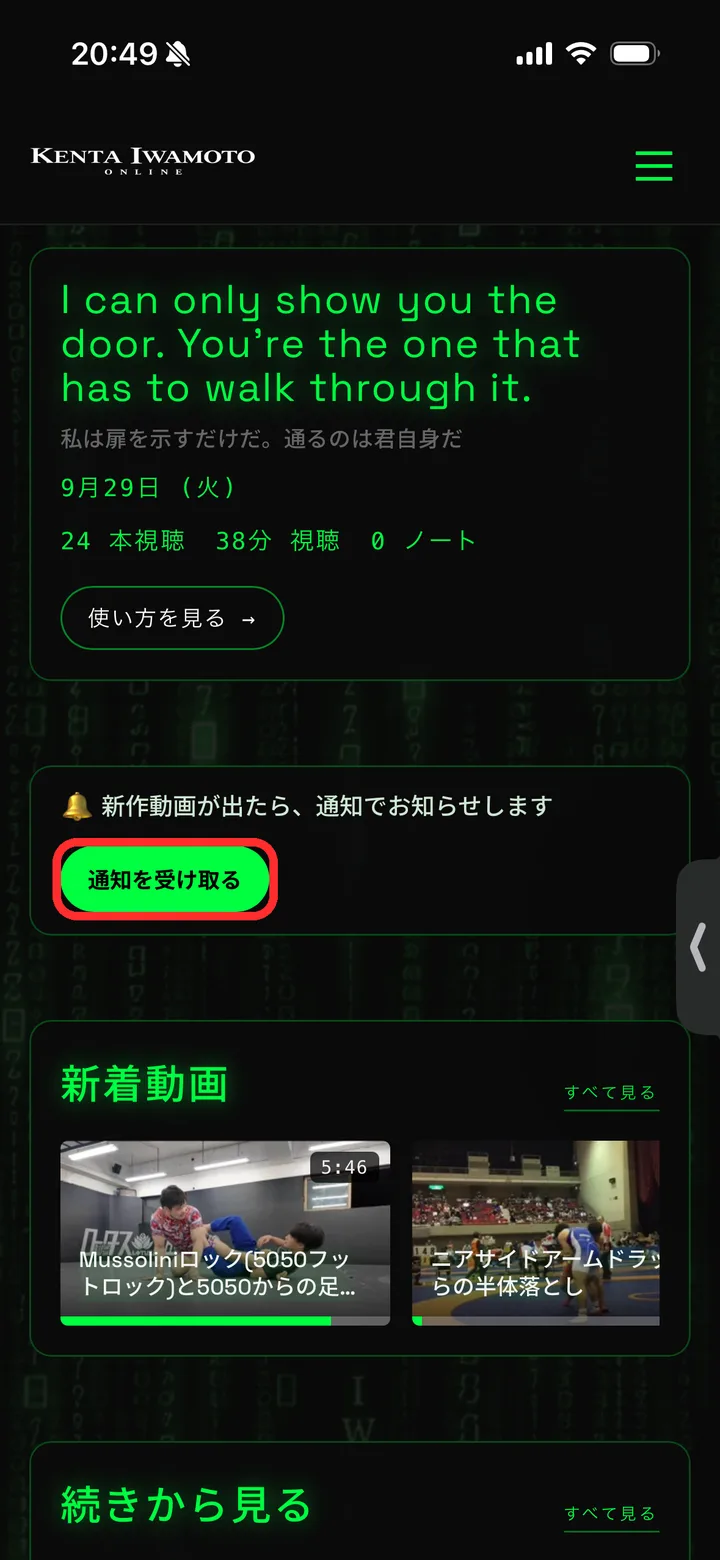
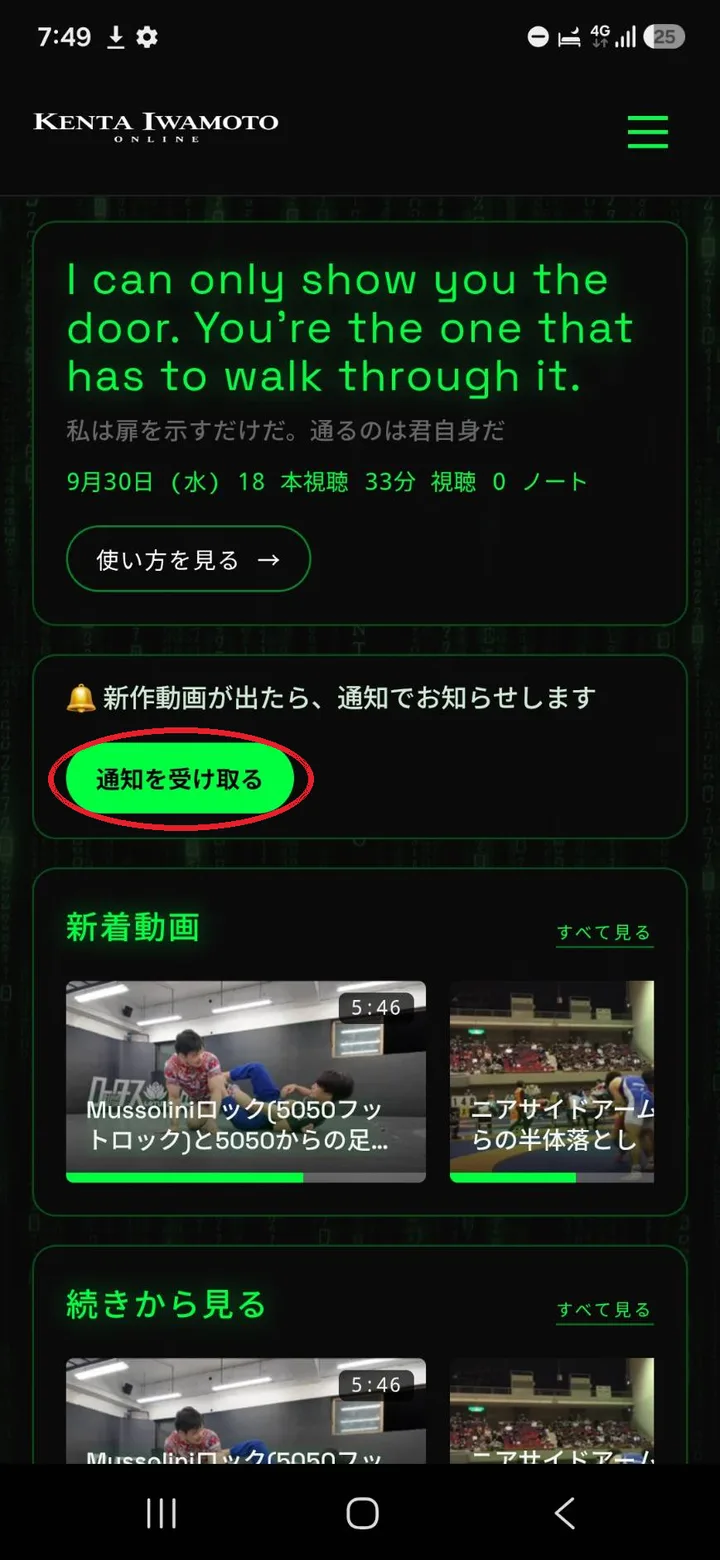
ホーム画面の緑の「汰」のアイコンから開き、ダッシュボードの「通知を受け取る」を押します。続けて出てくる確認で「許可」を選んでください。「通知をオンにしました」という通知が届けば完了です。オフにするときも、同じ場所のボタンから。
新作が何本か重なったときは、1 回の通知にまとめてお送りします。
Android の方: アプリとして追加して、新作動画の通知を受け取るには
Android は、ブラウザ (Chrome) のままでも見られます。新作動画が出たときに通知を受け取りたい方は、Chrome からアプリとして追加してください。
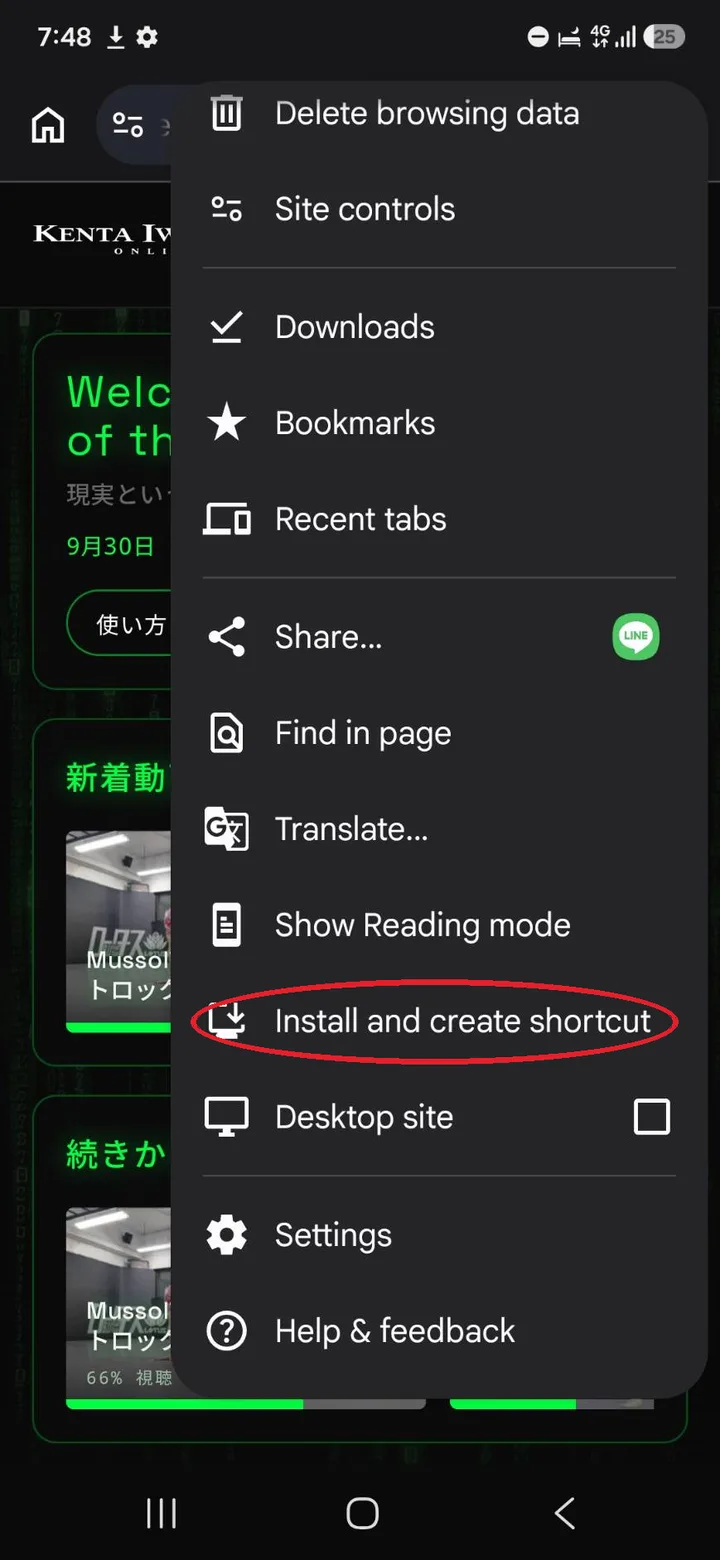
Chrome で kentaiwamoto.com を開き、右上の「︙」を押して、メニューの中の「インストール」や「ホーム画面に追加」と書かれた項目を押します。英語表示の Chrome では「Install and create shortcut」です (上の画像)。
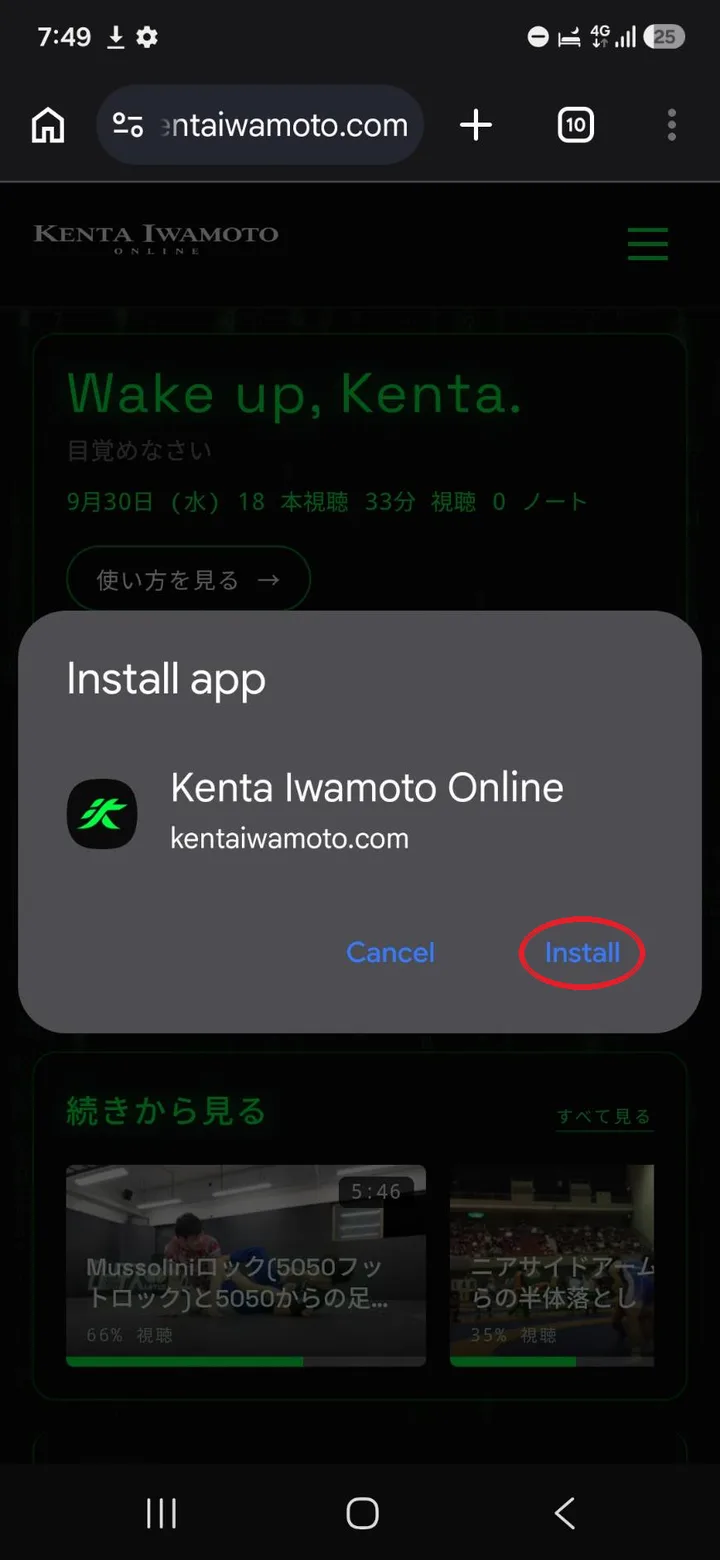
確認が出たら「インストール」を押します。英語表示では「Install」です (上の画像)。
ホーム画面に緑の「汰」のアイコンができます。次からは、ここから開いてください。ログインを求められたら、もう一度ログインしてください。
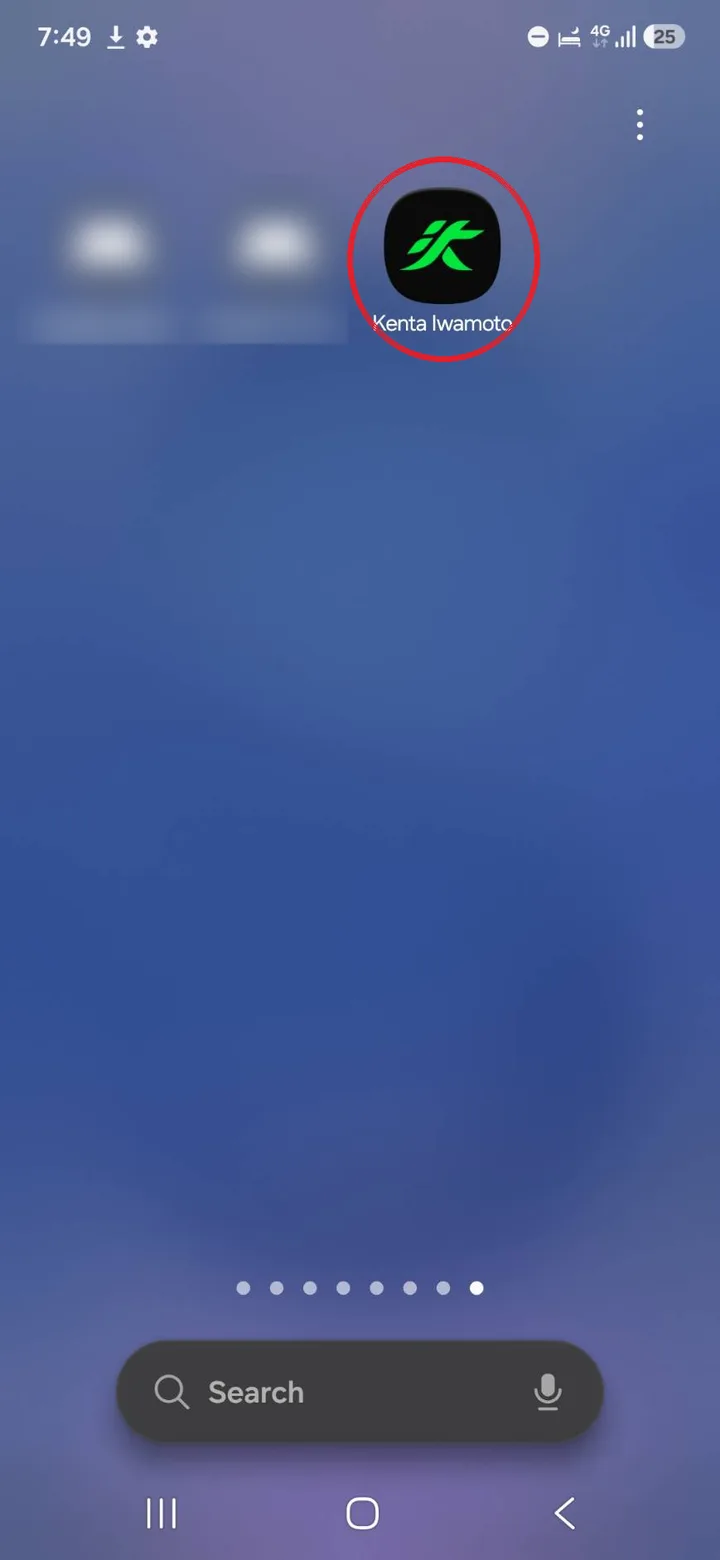
アイコンから開き、ダッシュボードの「通知を受け取る」を押します。
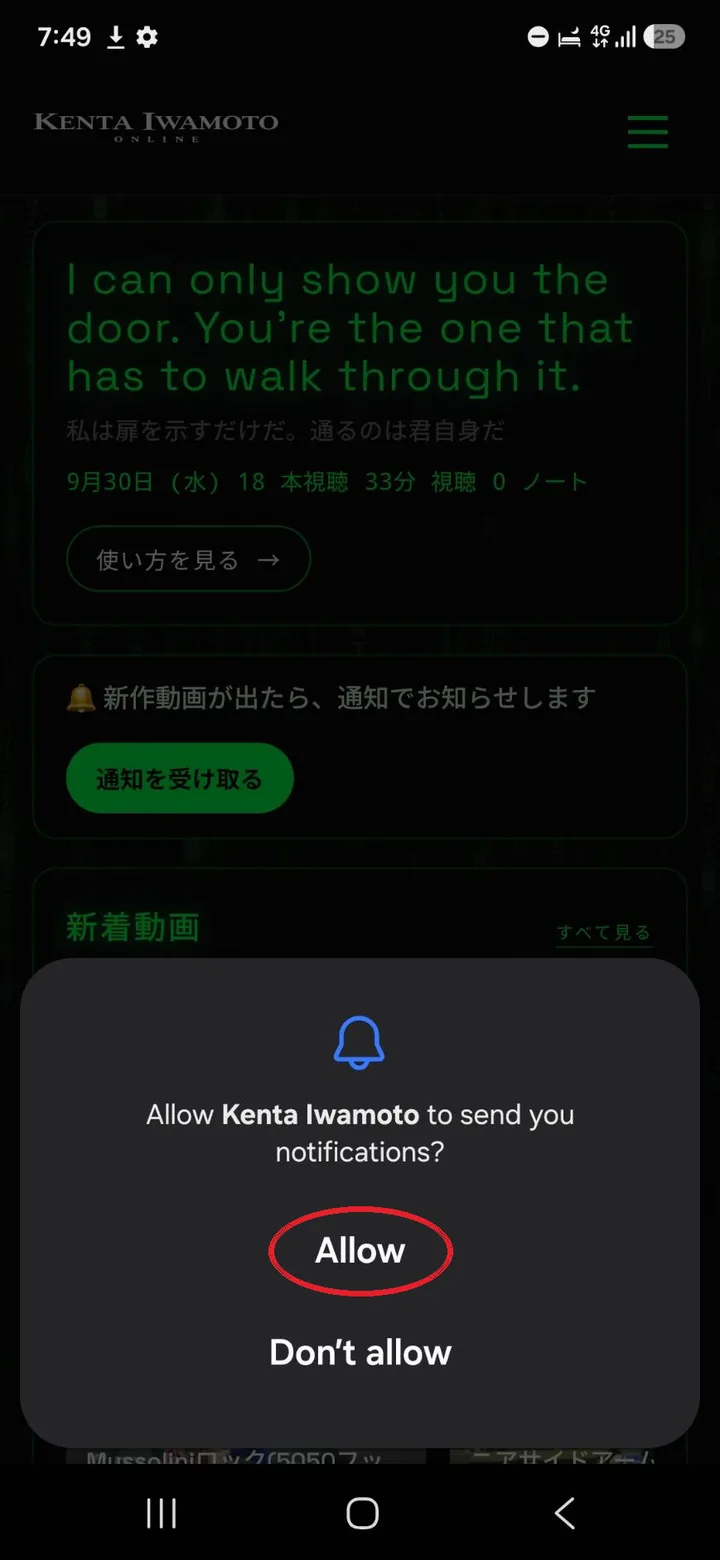
通知を許可するか聞かれたら「許可」を押します。英語表示では「Allow」です (上の画像)。「通知をオンにしました」という通知が届けば完了です。オフにするときも、ダッシュボードの同じボタンから。
新作が何本か重なったときは、1 回の通知にまとめてお送りします。
全画面のときの操作
- 画面を 1 回タップすると、操作ボタンが隠れます。もう一度タップすると出てきます。
- 画面の左側・右側をすばやく 2 回タップすると、10 秒戻る・進む。
- 左上の「×」で、プレイヤーを閉じて元の画面に戻れます。
わからないことがあれば、お問い合わせかフォーラムに気軽に書いてください。
iPhone: add it to your Home Screen for the best experience
On iPhone, we recommend adding Kenta Iwamoto Online to your Home Screen. It opens like an app, without the browser bars, and in full screen every button — mirror, A-B repeat, 10-second skip — keeps working.
Why?
iPhone browsers don't let websites use true full screen. In Safari or any other browser, full screen works like this:
- Mirror off — the video opens in iPhone's own player and fills the screen, but our buttons (mirror, A-B repeat, 10-second skip) aren't available there. The built-in 15-second skip still works.
- Mirror on — to keep the video flipped, it's enlarged inside the page, and the browser bars stay on screen.
Opened from the Home Screen, none of this applies. Computers get everything in the browser. On Android, see the Android steps below.
Steps (takes a minute)
Open kentaiwamoto.com in Safari and tap “…” at the bottom right.
Tap “Share”.
Tap “Add to Home Screen”.If you don't see it, scroll down.
① Make sure “Open as Web App” is on, then ② tap “Add”.
A green icon (the kanji “汰”) appears on your Home Screen. Open the site from there from now on.You'll need to log in once the first time you open it from the Home Screen.
Get new-video notifications on iPhone
When you open the site from your Home Screen, we can send you a notification whenever a new video is out.
Open the site from the green “汰” icon, then tap “Turn on” on the dashboard and choose “Allow”.You're set when a “Notifications are on” notification arrives. Turn it off from the same button.
If several videos come out close together, you'll get one notification for all of them.
Android: install it as an app to get new-video notifications
On Android, you can watch in the browser (Chrome) as it is. If you'd like a notification when a new video is out, install the site as an app from Chrome.
Open kentaiwamoto.com in Chrome, tap “⋮” at the top right, then tap “Install and create shortcut”.Depending on your Chrome it may say “Install app” or “Add to Home screen”.
Tap “Install”.
A green icon (the kanji “汰”) appears on your Home screen. Open the site from there from now on.If it asks you to log in, log in once more.
Open it from the icon and tap “Turn on” on the dashboard.
When it asks “Allow Kenta Iwamoto to send you notifications?”, tap “Allow”.You're set when a “Notifications are on” notification arrives. Turn it off from the same button.
If several videos come out close together, you'll get one notification for all of them.
In full screen
- Tap the video once to hide the controls; tap again to bring them back.
- Double-tap the left or right side to skip back or forward 10 seconds.
- Tap “×” at the top left to close the player and go back.
Questions? Use the contact page or post in the forum.